Posts mit dem Label PowerShell werden angezeigt. Alle Posts anzeigen

Montag, 25. April 2016

PowerShell Tip of the Day

Hi, Everyone

Long time, no see. Last week I attended the AWESOME PSConfEU 2016. Boy (and girl), what a great event, with  a lot of fantastic people and exciting topics. Might be a good time to restart my daily tip series :)

Today I want to show, how we can ensure that a PowerShell script will only run, if a specific module exists on the machine.

It is very simple: we can use the #Requires statement - and I encourage you to read the help site, because there a few other parameter available.

What is happening when we try to run this script?

Dienstag, 12. Januar 2016

Only 98 day till the biggest PowerShell Event 2016 in Europe...

This week the organiser of the PowerShell Conference EU 2016 announced the lineup. There are great people like Jeffrey Snover (yes, himself :) ), June Blender, Jeff Wouters, Ryan Yates, Ravikanth Chaganti and many, many more. Check out the agenda and the exciting topics!

And more important: go ahead and register. There are only 98 days left.

Mittwoch, 11. November 2015

PowerShell Conference Europe 2016

Are you want to meet other enthusiastic PowerShell User from all over Europe? Want to talk about all the stuff that is happening in the PowerShell world? Then you are right at the PowerShell Conference Europe 2016 in Hannover, Germany! This event is happening from 20th to 22nd of April 2016 and is organised by the "Deutsche PowerShell Konferenz" and PowerShell Community Members from all across Europe.

Learn more on the official web page and register yourself for this extraordinary event. You can also follow us on Twitter for the most recent updates.

Dienstag, 29. September 2015

PowerShell Tip of the Day

If you want to write functions, scripts or cmdlets in PowerShell that other people can intuitively use, the first step is to name them descriptive.

Microsoft makes our life easy, because it gave us a list of "approved verbs". You can also output a list of these Verbs in PowerShell:

Get-Verb

Please consider this when you create scripts or commands ;)

P.S.: Right now the Azure Con is under way -> https://azure.microsoft.com/de-de/azurecon/#sessions ... Take some time to listen in, especially in the keynote to see what's up and what can be done with Azure.

Samstag, 26. September 2015

PowerShell Tip of the Day

Windows 8.1 and Server 2012 R2 got a pretty easy way of telling you who is connected to your smb shares:

Get-SmbConnection

The output shows which user - even with which credentials - is connected to which share. It also display the number of connections. Very important is also the property "Dialect".

Donnerstag, 24. September 2015

PowerShell Tip of the Day

Yesterday I talked about Out-GridView. Today I want to continue here and demonstrate what useful stuff you can do.

Lets imagine you want to write a quick script, which let you select multiple processes to be killed. This is a very common task for help desks.

We already saw, that Out-GridView lets you display processes (or any other objects) in a nice table view. If you take a deeper look on it, you will see that you can very easy filter your output:


You can define a filter on every property. This could be helpful if you want to see which processes have a high memory usage for example or if you only want to see a specific program:


But how can we design a "kill processes"-script with that? Well, we need the ability to pipe your selection to Stop-Process. Is there anything out-of-the-box? Our little helper on those questions is the PowerShell help system "Get-Help" ;)

With "Get-Help Out-GridView" you can see that there is a Parameter "PassThru". If we add this to our command, everything we select in our GridView will be send down the pipeline. In our case we will add a "Stop-Process" to the end of our pipeline:

Get-Process | Out-GridView -PassThru | Stop-Process

If you run this command you will see an OK-Button on the bottom of the new GridView window. This will close the window and take everything selected to the next step on the pipeline. The pipe itself will be paused as long as the GridView is open.

So if I want to kill all notepad processes, I select all of them in my GridView and click "OK". And *boom* it will be piped to "Stop-Process" and - if possible - the selected processes will be killed.

So, go on and play around with the GridView. And may the pipe be with you! :)

Mittwoch, 23. September 2015

PowerShell Tip of the Day

Since I have not much time on my hand today, I will just post a quick "tip of the day" - who will be continued tomorrow ;)

One of the many, many, many, many cool things about PowerShell in my opinion is "Out-Gridview" .

What does Out-GridView do? Well "Get-Help Out-GridView" describes it very well:

"Sends output to an interactive table in a separate window."

For Example: it takes the output of a cmdlet - like "Get-Process" - and displays it in an extra (table) view:


This already looks like a nice tool, doesn't it :) But wait there is more...tomorrow ;) But please don't be afraid of playing around with this command until then.

Dienstag, 22. September 2015

PowerShell Tip of the Day

Today I wanna talk about a cool cmdlet, that helps you get comfortable with other cmdlets. It is "Show-Command".

Let's assume you want to create a Scheduled Task. One possible step is to create a "ScheduledTaskSetting"-Object - basically a collection of task settings like the restart count and so on.

Useful as PowerShell is, there is a cmdlet "New-ScheduledTaskSettingSet" - with a lot of parameters. You could go this set through one by one... or run the following command:


Show-Command opens a new window with all parameters or different parameter sets. As you guess you can simply "click" a command together (but don't forget to look at Get-Help! ;) )

But now follows the best: you can copy the generated command to your clipboard (or directly run it; but be careful with that).

So, let's have fun with that. By only running "Show-Command" (without parameters) you see all PowerShell cmdlets and can filter them by Module.

And don't forget "to Update-Help" and especially Get-Help, to learn more about the powerful world of PowerShell.

Montag, 21. September 2015

PowerShell Tip of the Day

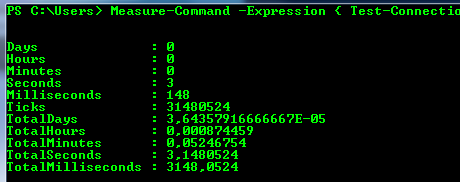
Ever wondered how long your script takes to run? Then use a stopwatch... or give "Measure-Command" a try :)

Measure-Command -Expression { Test-Connection -ComputerName Localhost }


That is just a quick example how it can be used. You can also run it against a complete script or function. This cmdlet is also very useful if you want to optimize your scripts and want to check which approach is faster.

Sonntag, 20. September 2015

PowerShell Tip of the Day

I really love short and handy one-liner - and with PowerShell and the power of the pipe it is easy as 1,2,3 :)

Today I demonstrate this with a quick command to get the average Memory usage of specific processes (in MB):

Get-Process EMET_Agent | ForEach-Object { $_.WorkingSet/1MB } | Measure-Object -Average

Background: we discovered a notable memory usage per user session on our terminal servers (XenApp & RDS on Windows Server 2008 R2) and want to verify this on other servers.

May the pipe be with you :)

Samstag, 19. September 2015

PowerShell Tip of the Day

To get the last run time of all scheduled tasks (and put them in a GridView)

Get-ScheduledTask | ForEach-Object { Get-scheduledtaskInfo $_} | Select TaskName, LastRunTime | Out-GridView